
Convert any HTML to Figma: just paste a URL and press convert.
Try htmltofigma.netFrequently Bought Together in Shopify Cart Drawer, No App Required
Most “frequently bought together” apps show you random or manually curated product pairs. What if the suggestions were powered by your own store’s real order history, and updated themselves automatically with every new order?
That is exactly what we built. A script that mines your entire Shopify order history, builds a co-purchase map, and writes the results straight into each product’s metafield. Then a Shopify Flow keeps the data fresh on autopilot.
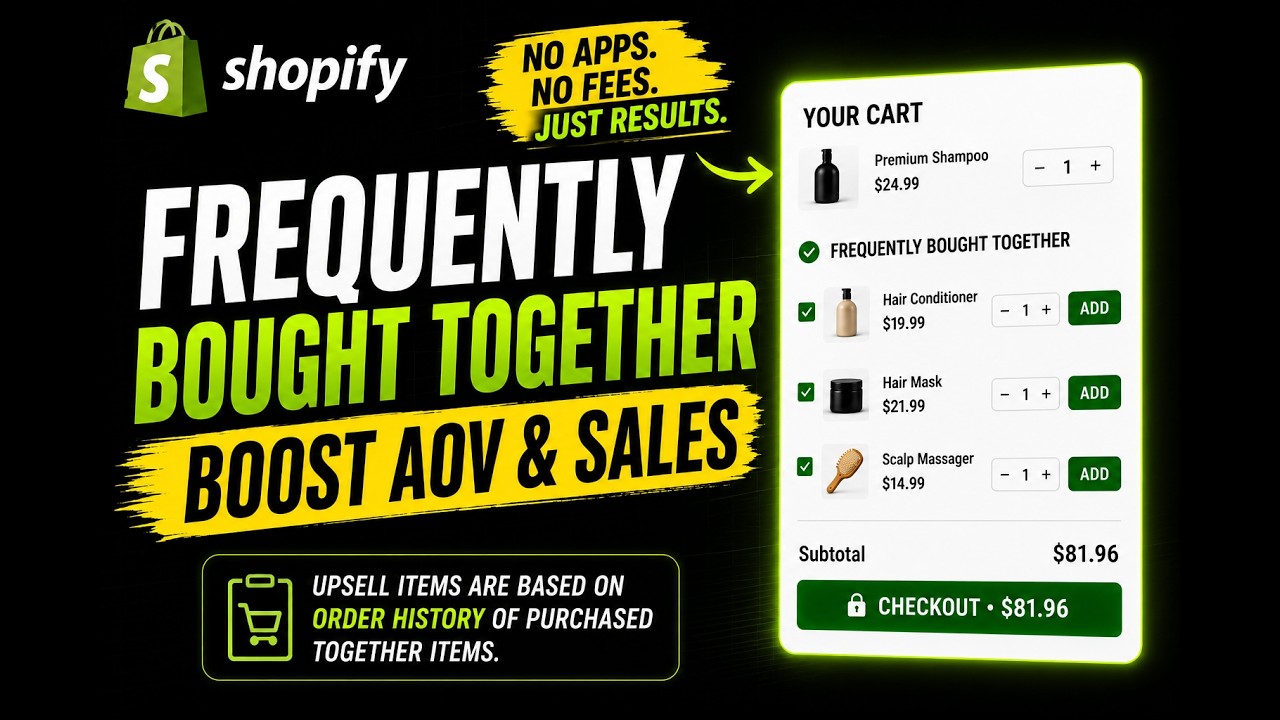
The result: a cart drawer that shows customers products that people like them actually bought together, not guesswork, not ads, real purchase behaviour from your store.
Why This Approach Converts Better
When a customer adds a product to their cart and sees “people who bought this also bought X”, there is a high chance that X genuinely complements what they are already buying. The recommendation is not random, it comes from hundreds or thousands of real transactions in your store.
This is the same logic Amazon built its empire on. The difference is that you are not paying a monthly app fee, and the data lives in your own store.
Benefits at a glance:
- Recommendations are unique to your store’s purchase patterns
- The data self-refreshes with every new order via Shopify Flow
- No third-party app subscription, the logic lives in your theme and metafields
- Works inside the cart drawer without slowing down the page
- Higher relevance → higher click-through → higher average order value (AOV)
How It Works, The Full System
The system has two parts:
Part 1, The one-time historical backfill script
A Node.js script that fetches all your past orders, builds a co-purchase frequency map for every product pair, and writes the data to each product’s custom.bought_together metafield via the Shopify GraphQL Admin API.
Part 2, The Shopify Flow that stays current
A Shopify Flow automation that fires on every new order, reads the existing metafield data for each product in the order, increments the co-purchase counts for every pair, and writes the updated data back to the metafields. No manual work required after setup.
The Metafield Structure
Each product gets a single custom.bought_together metafield of type json. Its value is an object where each key is a co-purchased product ID and the value is how many times they were bought together, sorted by frequency descending:
{
  "8765432100": 42,
  "1234567890": 17,
  "9988776655": 5
}
When a customer has this product in their cart, your theme reads this metafield and renders the top results as suggestions inside the cart drawer.
Part 1: The Historical Backfill Script
The full script is available on GitHub: github.com/saadsaif97/bought_together
What the script does
- Fetches all orders from your Shopify store, paginated at 250 per page
- For every order with 2 or more distinct products, increments a co-purchase counter for each product pair
- Saves the full map to
bought_together.jsonfor your reference - Uploads each product’s data as the
custom.bought_togethermetafield via the GraphQL Admin API, in batches of 25 to stay within rate limits
Setup
Clone the repo and install dependencies:
git clone https://github.com/saadsaif97/bought_together.git
cd bought_together
npm install
Create a .env file with your store credentials:
SHOPIFY_STORE=your-store.myshopify.com
SHOPIFY_ACCESS_TOKEN=your_admin_api_token
You need a custom app access token with
read_ordersandwrite_productsscopes. See my earlier post on how to get a Shopify Admin access token.
Run the script:
node index.jsThe script will log its progress as it processes your orders and uploads the metafields. Depending on your order volume, this may take a few minutes. Run it once, after that, Shopify Flow takes over.
Part 2: The Shopify Flow (Auto-Updating)
Once the historical data is in place, you need every new order to update the co-purchase counts. This is handled by the Shopify Flow below.
Download the Bought Together Flow file
Import it directly into your Shopify admin under Marketing → Flows → Import.
How the Flow works
Trigger: Order created
Step 1, Run Code
The flow runs a JavaScript snippet that:
- Reads the line items from the new order
- Deduplicates products (so a product appearing twice in the same order is only counted once)
- Loads each product’s existing
custom.bought_togethermetafield data - Increments the co-purchase count for every product pair in the order
- Returns a list of products with their updated metafield values
export default function main(input) {
  const products = input.order.lineItems.map(item => item.variant.product);

  const seen = new Set();
  const uniqueProducts = [];
  for (const p of products) {
    const id = p.id.split('/').pop();
    if (!seen.has(id)) { seen.add(id); uniqueProducts.push({ id, product: p }); }
  }

  const productIds = uniqueProducts.map(p => p.id);
  if (productIds.length < 2) return { productUpdates: [] };

  const dataMap = {};
  for (const { id, product } of uniqueProducts) {
    const mf = product.metafields.find(
      m => m.namespace === 'custom' && m.key === 'bought_together'
    );
    dataMap[id] = mf ? JSON.parse(mf.value) : {};
  }

  for (const a of productIds) {
    for (const b of productIds) {
      if (a === b) continue;
      dataMap[a][b] = (dataMap[a][b] || 0) + 1;
    }
  }

  return {
    productUpdates: productIds.map(id => ({
      productGid: `gid://shopify/Product/${id}`,
      boughtTogether: JSON.stringify(dataMap[id]),
    })),
  };
}
Step 2, For each loop
Iterates over the productUpdates array returned by the code step.
Step 3, Update product metafield
For each product, writes the updated JSON to the custom.bought_together metafield.
Orders with only one product are skipped automatically (no pair to count).
Displaying the Data in Your Cart Drawer
With the metafield data in place, you can read custom.bought_together for any product in the cart and render the top results as upsell suggestions.
In your cart drawer Liquid template, the high-level logic is:
- Loop through the cart items
- For each item, read its
custom.bought_togethermetafield - Sort the co-purchased product IDs by count (highest first)
- Fetch and render the top 2–3 products that are not already in the cart
Because the data is stored directly on the product, there are no extra API calls at render time, it is all available in the Liquid context via metafields, keeping your cart drawer fast.
Frequently Asked Questions
Does this work on any Shopify theme?
Yes. The data is stored in standard Shopify product metafields. You can read it in any theme using Liquid. The cart drawer display code will need to be adapted to your theme’s structure.
What if a product has no order history?
The metafield will simply be empty or missing. You can add a fallback in your theme, for example, show bestsellers or a manually curated list.
Will the Flow slow down order processing?
No. Shopify Flow runs asynchronously after the order is created. Your customers see no difference in checkout speed.
What about stores with very high order volumes?
The Flow handles one order at a time and processes each product pair independently. Shopify Flow is designed for this kind of automation at scale. The batching in the initial backfill script also prevents rate limit issues.
Can I limit how many suggestions are shown?
Yes, in your cart drawer code, simply slice the sorted results to however many you want to display (typically 2–4 works well without overwhelming the customer).
The Business Case in Plain Numbers
If your store processes 200 orders per month with an average of 2.5 items per order, you are generating roughly 300 product-pair data points every month. After a year, your recommendations are based on thousands of real purchase signals, specific to your catalogue, your customers, and your pricing.
Compare that to a generic “customers also viewed” app that shows products based on browsing behaviour or manually configured rules. The conversion rate difference is significant because the relevance is real.
Summary
| Step | Tool | Runs |
|---|---|---|
| Historical backfill | Node.js script | Once |
| Keep data fresh | Shopify Flow | Every new order |
| Display suggestions | Liquid / cart drawer | Every cart open |
Resources:
- Script: github.com/saadsaif97/bought_together
- Flow file: Download Bought Together.flow
If you need help implementing this in your store, view my Shopify services. I specialise in custom Shopify development and can get this set up for you quickly.
Video Tutorial
Watch the step-by-step video tutorial here:
Reviews
Convert any HTML to Figma: just paste a URL and press convert.
Try htmltofigma.net